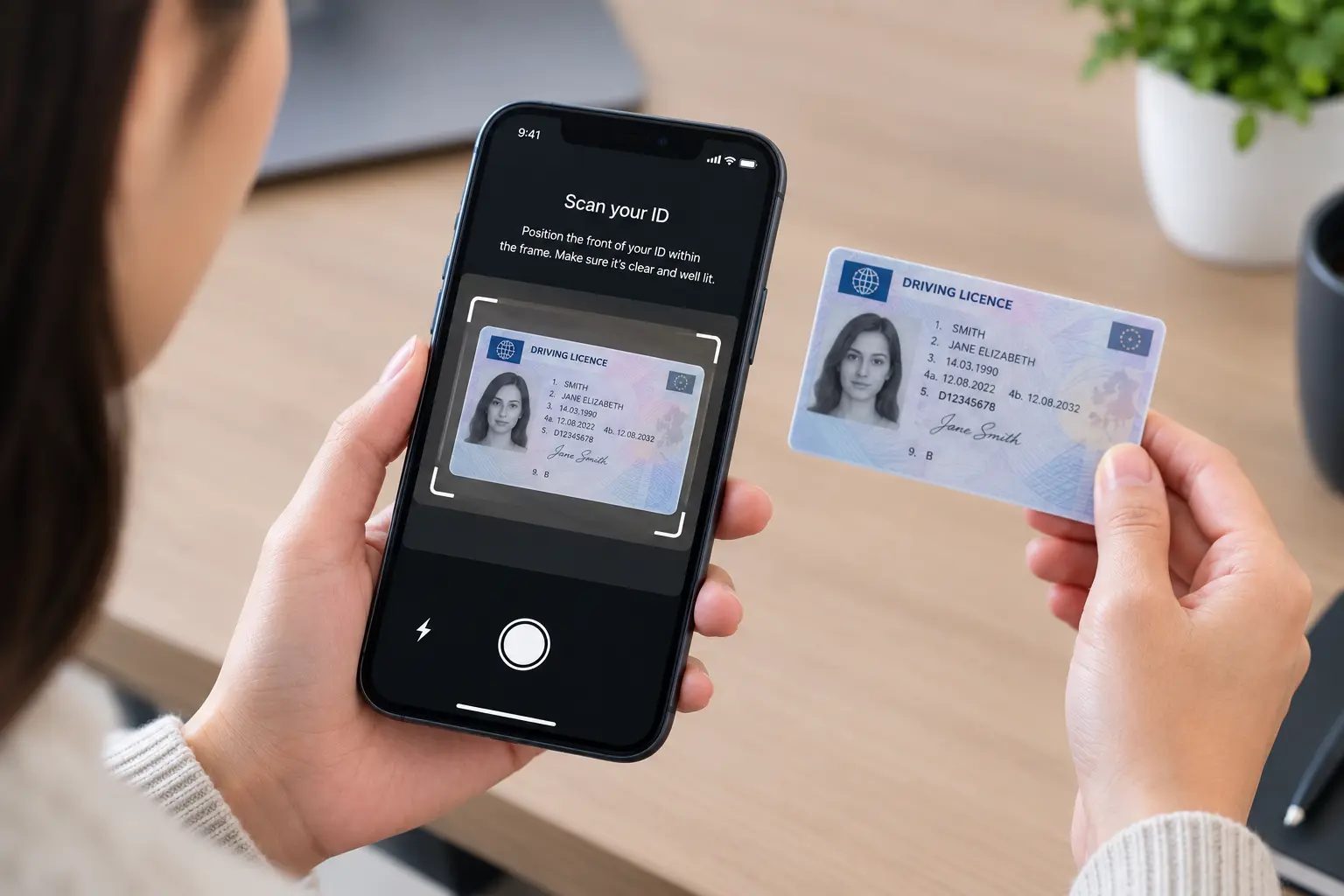
Someone has asked for a copy of your passport or ID. The short answer: don’t photograph it. Scan it, mark it for the person receiving it, send it through the route they gave you, and delete every copy afterwards.
That takes about two minutes. Most of the risk comes from skipping the last step.
Do this, in order
- Ask what they actually need to see. Photo page, document number, both sides? Most requests are broader than the check behind them.
- Scan, don’t photograph. A camera-roll photo is uncropped, carries capture metadata, and stays on your phone by default.
- Watermark the copy with the recipient, the purpose and the date. That ties the copy to one request instead of leaving it generic.
- Send it through the route the organisation gave you: their upload link or portal, not a chat thread.
- Delete it in four places: the file, the trash folder, the app that made it, the cloud backup.
The steps in the CVOR app
CVOR Guard handles steps 2 and 3 together, on the device. Nothing is uploaded and there is no account to create.
- Open CVOR and tap CVOR Guard. The scan tool is also on the home screen under PDF Tools if you would rather start there.
- Scan the document. Position the ID inside the frame on a matte surface with even light. The scanner finds the edges, straightens the page and produces a PDF. If you already have a file or photo, pick that instead of rescanning.
- Add the recipient watermark. Enter who the copy is for, what it is for, and the date — For Northgate Lettings — tenancy application — 9 October 2026. The copy leaves your phone already marked, so it is attributable from the moment you send it.
- Check the mark is clear of the fields they need. A watermark across the machine-readable zone gets the document sent back, and a resend puts another copy into circulation.
- Share it to the upload link, portal or address the organisation gave you.
- Open History later to see what you sent, to whom, and when, without going back through chat threads.
The other tools in the app (combine, convert, split, compress) also run locally, so a document you are preparing for a check does not leave the phone to be processed.
Using the phone’s built-in scanner instead
On iPhone: Notes → new note → camera button → Scan Documents. The Files app has the same option in its menu. On Android: Google Drive → new item → Scan. Many recent Android camera apps detect a document in frame and offer the same thing.
Both export a PDF rather than a camera-roll image, and that matters. A camera photo carries capture metadata, which on many phones includes location if the camera has location access. Scanner output normally does not carry the camera’s location tag, though it does carry its own creation date and producing app. Check your own device rather than assuming.
You will still need to add the watermark and manage the deletion yourself.
On other scanner apps: some process entirely on the device, others upload the page to a server to sharpen it or run text recognition, and their retention terms vary. Neither behaviour is dishonest. But an identity document is a poor first test of an app whose processing you have not read about.
Get a legible scan on the first try
Every rejected scan doubles the copies in circulation. A minute here saves a resend.
- Matte, plain, dark surface. A wooden table works; a glossy magazine cover does not.
- Even indirect light, not the flash. A flash on a laminated card puts a bright patch exactly over the photograph and the hologram.
- Phone parallel to the document, frame filled, cropped to the document edge so none of the room is included.
- Check at full zoom before sending. Scanner filters raise contrast to sharpen text, and that can wash out a hologram, an overlay or faint print the recipient needs to see.
- Use colour, not black-and-white, if the check has to see security features.
- Only scan the second side if you have been told it is required.
Send only the fields the check needs
Some checks need the photograph and name. Some need the document number and expiry. Some need the machine-readable zone. “A copy of your passport” does not distinguish between them, and the person who asked can usually be more specific.
If a partial copy is acceptable, redact properly. A black box drawn with a phone’s markup tool is often stored as an annotation over the page rather than a change to it. Opened in a different PDF editor, that box can be moved or deleted, and the text underneath is still there.
So flatten the file: export the redacted page as an image, or screenshot it and send that. Then open the result and confirm the redaction is genuinely part of the picture. This is the step people skip, and it is the one that quietly turns a careful redaction into no redaction at all.
What the watermark should say
Three things (recipient, purpose, date) in this form:
For [organisation] — [purpose] — [date]
A watermark is a deterrent and an accountability marker. It does not encrypt the file, stop a screenshot, revoke access, or make an untrustworthy recipient safe. What it does is narrow the set of plausible explanations for a copy turning up somewhere it should not be.
Two things people get wrong. Apply it after cropping, because a mark placed in a margin disappears the moment someone trims the page. And keep it off the fields the check needs.
Why recipient-oriented watermarking works explains why naming the recipient beats a generic COPY stamp. Should you watermark your passport covers the official processes that will not accept a marked copy.
Choose the route before you choose the file
Use the upload link or portal if you were given one, even when a chat thread feels quicker. A controlled route ties the document to the request that prompted it, records who received it, and gives the organisation somewhere to apply retention and deletion.
Email and messaging apps are good at communication. Neither was designed to track custody of an identity document, and a file sitting in a chat thread is easy to forward and hard to withdraw.
If no route is offered, ask three questions: who can open it, how long is it kept, and how is it deleted. Sending an ID to a hotel sets out what a reasonable answer sounds like.
Delete it in more than one place
Once the document has been accepted, the copy on your phone has no remaining purpose.
- The file itself.
- The recently-deleted or trash folder: most phones hold items there for another thirty days.
- The app that created it: a Notes note, a Drive folder, a scanner app’s library. Deleting the exported PDF does not remove the original.
- The cloud backup, if photos or documents sync automatically. A deletion on the phone may or may not propagate, depending on the service and the setting.
Almost nobody does this, which is why so many phones still carry identity documents from applications that closed years ago. What someone can actually do with a copy of your ID explains why the copy you keep matters more than the one you sent.
If you are the one asking for the ID
Everything above is work the sender does to make up for a process that was never designed. When an organisation asks for identity documents through a chat message, the person sending one decides the format, the channel, the redaction and the deletion alone, and then has no way of knowing what happened next.
Organisations that collect identity documents regularly solve this at their own end. The request names the document and the purpose. Submissions arrive through one controlled route rather than four inboxes. Access is limited to the people who need it. Every request, upload, view and download is recorded. Retention and deletion are decided before the document arrives rather than remembered afterwards.
That is what governed document custody means in practice: the lifecycle is defined at the point of request, not reconstructed later from a mail folder.
The two minutes are for deciding who is meant to have the copy, what for, and when it stops existing, before it leaves your hand. Skip that and the copy decides for you, and it usually decides to stay.
CVOR Guard helps you add recipient and purpose context before sharing sensitive documents.
Explore CVOR Guard →Frequently asked questions
What is the best way to scan an ID with a phone?
Use a document scanner rather than the camera, and mark the copy before you send it. CVOR Guard scans and adds a recipient watermark on the device in one pass. The built-in scanners work too (Scan Documents in iPhone Notes or Files, Scan in Google Drive on Android), but they leave the watermarking and the deletion to you.
Should I send an ID as a photo or a PDF?
Send whichever format the recipient asked for. If they have no preference, a scanner-produced PDF is usually better than a camera-roll photo because it is cropped, kept as one file, and does not carry the camera's capture metadata such as location.
Is it safe to use a third-party scanner app for an identity document?
It depends on where the processing happens. Some scanner apps work entirely on the device; others upload the page to a server to sharpen it or run text recognition, and their retention terms vary. An identity document is a poor first test of an app whose processing you have not checked.
How do I properly redact part of an ID before sending it?
Do not rely on a black box drawn with a phone markup tool, because it is often stored as an annotation over the page and can be removed in another PDF editor. Flatten the file first by exporting it as an image or taking a screenshot of the redacted page, then confirm the redaction is part of the picture.
Should I delete the scan after sending it?
Yes, and in more than one place. Delete the file, empty the recently-deleted or trash folder, remove the original from the app that created it, and check whether a cloud backup still holds a copy.